Main part of Tibia screen is occupied by the Game Window. This is area which the most of time you are looking at. All your adventures, talks with your friends, other players or NPCs, and also battles with creatures or other players are visible here.
When there is a night or you are in the underground caves, depending of the Ambient Light option in settings, you can also see a darkness or even completely black areas of the Game Window.
The Game Window can render a maximum of 15 × 11 square meters (fields) with the size of 32 × 32 pixels each, if not enlarged or reduced.
Communication
Communication is a very important aspect everywhere. Tibia is not an exception.
When playing Tibia you have to read many messages in the Game Window. You can distinguish type of one from the other by the color or position.
Also, with icons and other graphics, you can get to know about your or other character's Hit Points (as well as creature's HP), membership or leadership in Party or Skull mark on PvP world.
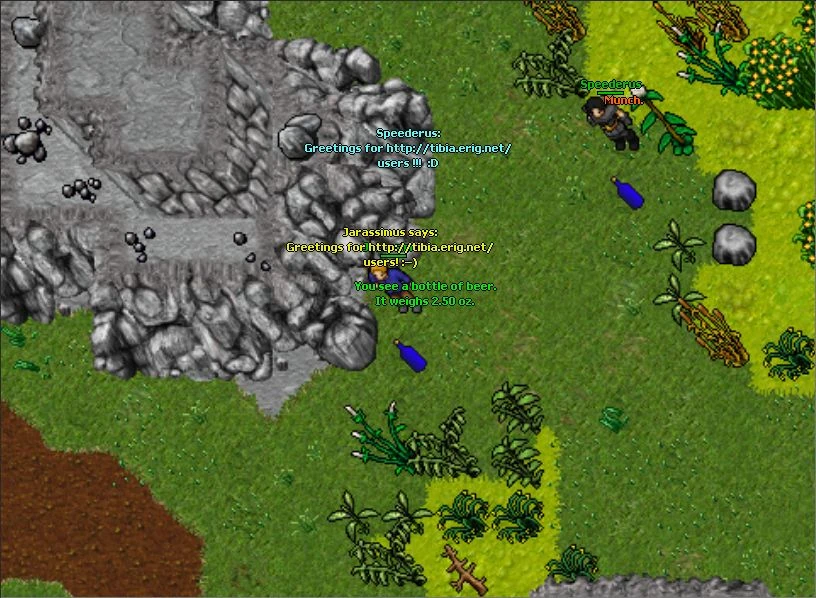
When appropriate option in settings is turned on, all players, NPCs or creatures have their name and/or HP amount (in form of short horizontal line) shown above their character. This can be also switched by Ctrl+N shortcut key (see description of shortcut keys further in this article). Color of this name and/or line is dependent of that how many HP has a given player or creature (NPCs cannot be attacked, thus they have always full HP) and is:
- green - when there is at least 60% of maximal amount of HP (Hit Points),
Messages that players or NPCs talk or yells to other are shown in yellow color near the person who said or yelled anything. Such messages also appear in Local Chat Channel in console under the Game Window.
Messages that players write to your character privately are shown in cyan color at the middle of the Game Window. Such messages also appear in Private Chat Channels or in Local Chat Channel in console under the Game Window.
Sounds that are produced by creatures and also players (when they are eating food or drinking) are shown in orange color near that creature or player.
When there is a player, item, creature or another object which you Look at (see description of the commands further), the text describing that object is shown in green color at the middle of the Game Window.
Some events messages such as advances to next level or skill, and also some special game events (like raids of specific creatures on the towns) are shown in white color at the middle of the Game Window.
There are also some messages for your character to let you know what's going on ("Sorry, not possible", "First go upstairs", "You are poisoned" etc.) that are shown in white color at the bottom of the Game Window.
Depending of settings these messages can also appear in the console under the Game Window.
Sometimes it appears a special message from server or from Gamemaster who want to broadcast it to all players, then it's shown in red color at the middle of the Game Window. Such message also appears in Default channel in console under the Game Window.
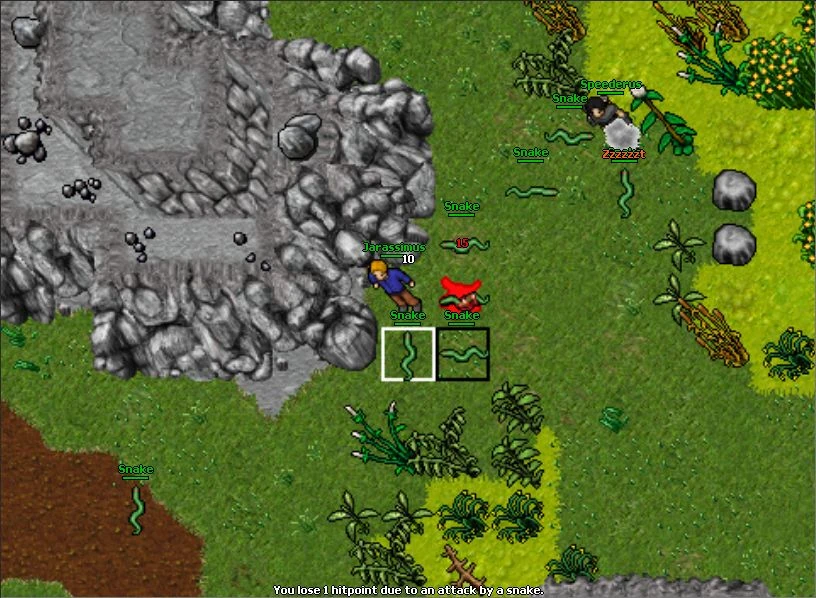
Another players or creatures can be shown in a square border (look at the picture below) of color:
- orange - when you are attacking them;
- green - when you are following them;
- white - when you are holding a mouse pointer over its name in Battle Window;
- black - when they are just attacking you.
Additionally, near the character (your or others) can be visible some icons:
 ,
,  ,
,  or
or  - these are Party icons.


 ,
,  ,
,  ,
,  or
or  - (only on regular PvP worlds) these are Skull System icons.


See above links to get more informations.
Battles
When you encounter a creature or another player (on PvP world) - you can Attack him. Then the both of them (you and that who was attacked) are fighting against the other. See description of the commands further in this article to know how to attack the creature or another player.
When Secure Mode is turned on - you cannot directly attack any other player on PvP world who isn't marked by any skull.
During the fight, if appropriate option in settings is turned on, it appears a number above creature or player who is getting a damage from the other. The number indicates how much HP is taken by a hit. And the color of this number indicates type of the damage:
- Red - when it's a
 Physical Damage (it appears a blood under creature or player, too),
- Green - when it's an
 Earth Damage,
- Orange - when it's a
 Fire Damage,
- Purple - when it's a
 Energy Damage,
- Blue - when it's
 Mana Drain or any type of damage on someone protected by
  Magic Shield or
  Energy Ring. This means, that hit takes his mana, not HP.
- If an undead creature (for example a skeleton) receives damage, the damage is shown in grey letters.
Additionally, when a player or creature is Poisoned, Burning or Electrified, it loses some amount of HP or mana (when Magic Shield is turned on) every few seconds and for short time it appears a  Poison Effect 1,
  Fire Effect or
  Blue Electricity Effect on the character. This lasts until the respective Special Condition is over.
Of course, when you lose all of your Hit Points, you are dead and then return to the temple of your hometown.
When a hit is succesfully blocked by a shield (normal shield, not Magic Shield), the  Poof Effect appears over the creature or player who was blocked. When a hit is missed, the
  Sparks Effect is shown over that creature or player.
After a creature or other player was killed, when the winner gets an experience points (in fact, all of the winners divide these experience points between them when there was more than one - the same goes for the summons), it appears a white number above him.
Many of dead creatures (as well as the containers) can be Open (see description of commands below) then you can take a loot from them.
Commands
Anytime when no dialog window is opened, you can perform some commands on visible objects in the Game Window. For example: you can Attack a creature or other player (on PvP world), Use an object (or Use with another object) or only Look at it, also Follow another player or Trade with him some items, Set outfit of your character and so on.
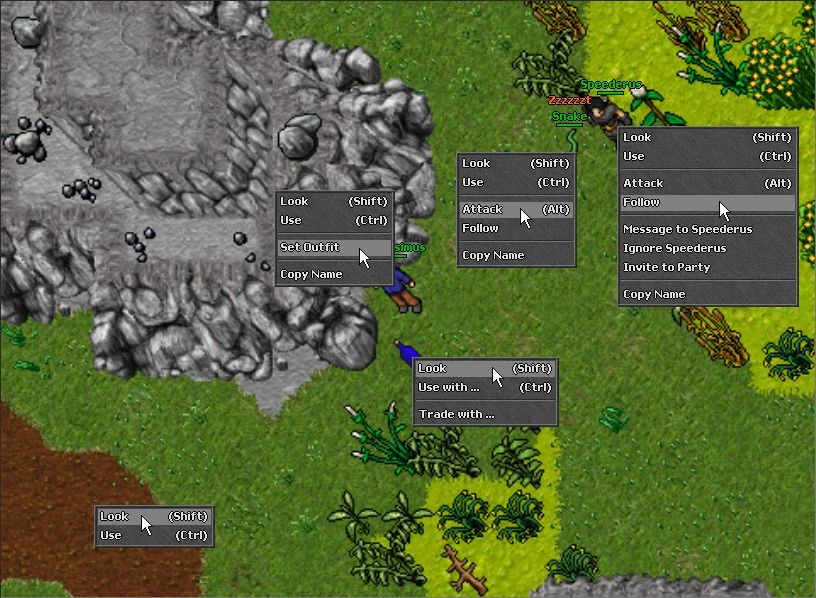
So, you can:
- Look - see and read description and/or parameters of any object (also read blackboards at the walls or signs by the roads or in the caves, or grave signs in the graveyards); when you stand on the next field of examined object and look at this - you can more exactly examine that object: for items that you could take it appears a weight of them, for the doors it appears "It's locked" when this is that case;
- Open - open the container or a dead creature and show a window on the right of the Game Window with its contents;
- Use - do a certain default action on an object (open the door, climb up on the ladder, eat the food, read the book or letter etc.); you must stand on the next field of this object to use it else, when there is at least one way to it - your character will try to go there;
- Use with... - do a certain action on an object with another one (the mouse pointer turns into a crosshair and you must left click target object; examples: use key with door to unlock it, use rope with a rope point to climb up, use vial with water to fill; you can also right click anywhere on the Tibia screen to cancel this command);
- Trade with... - do a Safe Trade with another player (the mouse pointer turns into a crosshair and you must left click target player; you can also right click anywhere on the Tibia screen to cancel this command);
- Attack - begin the battle with a creature or player (on PvP world) - see section above about battles; when Chase Opponent mode is active (see: Battle Modes) and you stand too far of attacked target, your character will try to go close to it if there is at least one way to there (in fact he will try to do it even when he could attack from a distance);
- Stop attack - stop attacking the creature or player (that is, cancel Attack action);
- Follow - walk automatically behind other player, NPC (or even creature), anywhere he goes;
- Stop follow - stop following the player, NPC or creature (that is, cancel Follow action);
- Message to nick - send private message to this player (this can open a new channel in the console);
- Ignore nick - don't see player's messages (ignore them);
- Unignore nick - stop ignore player's messsages;
- Invite to Party - invite another player to the party (see: Party to read about it and other available commands);
- Set outfit - set external look of your character in Tibia (see also: Outfits);
- Copy Name - copy the name of the player or creature into the clipboard.
Such actions as Attack or Follow are automatically canceled when the target object is lost, for example the player or creature goes out of visible area of your Game Window or he goes up or down an area level (eg. mountain, ladder, stairs etc.). When the target is on the same area level, but there is no way to the target, such actions are not canceled, but of course cannot be performed until at least one way to this target will be available. However, when you attack from a distance - you can do it even if between you and attacked object there is a river or sea, lava, trees, bushes, etc.
You can move your character by left clicking onto requested coordinates in the Game Window or the minimap, if it is a floor, ground, grass etc. Your character then try to automatically find the best (shortest and fastest) route to the target coordinates and will then initiate his/her journey, unless your character comes to a conclusion that there is no way to get to the target coordinates. You can also move your character by Arrow keys or Numeric pad digit (also known as Numpad digit) keys on the keyboard (see shortcut keys description below).
You can also move items and push creatures (however not all can be pushed) or players (see: Wrestling) by pressing left mouse button on them in Game Window, then dragging a mouse pointer (it turns into a crosshair) to the target position, and finally releasing mouse button. Items can be moved into your inventory or into containers that you have open (windows on the right of the Game Window), eg. into your backpack or into a box which stands on the floor.
When you are moving items that are stackable (eg. food, money, worms etc.), after release mouse button at target position Move Objects dialog window appears, where you can select how many pieces of that item you want to move. Moreover, you can quickly move (without displaying Move Objects dialog window) one or all pieces of that item at a time when during dragging it you are holding a key:
- ⇧ Shift - for one piece,
- Ctrl - for all pieces.
Creatures (those which can be moved at all) or other players can be moved one step of each direction. By dragging a mouse over your character you can also move yourself! To move a creature or player in any direction, a field behind him cannot be occupied by wall, bush, tree, water area (river or sea), lava, parcel, box, chest, or similar obstacles (even honey flower). This is often used by some players to abuse a game weakness when they are blocking your passage, e.g when you want to run away from the strong monsters.
Depending of Tibia Classic Control option in settings there are two ways to perform of commands listed above.
Tibia Classic Control: on
You can right click on the object (e.g item, door, ladder etc.) to Use it or, if that clicked object is a creature or player (on PvP world), to Attack him. This is quite fast method to perform actions, however it may lead to expensive mistakes (eg. when you accidentally attack another player on PvP world, who is much better skilled than you).
You can click both left and right mouse buttons on any object to Look at this.
When you press and hold Ctrl key and during it you click on any object with any mouse button - a context menu shows up, which contains all needed commands of that clicked object. This is needed, for example to perform Safe Trade or change your outfit. To select a command from the context menu click a desired command in it. To cancel the context menu click anywhere except this menu.
Tibia Classic Control: off
You can right click in the Game Window and then a context menu shows up, which contains all needed commands of that clicked object. To select a command from the context menu click a desired command in it. To cancel the context menu click anywhere except this menu.
However, it's not always too comfortable to use context menus (eg. when many creatures attack you). Because of this you can perform some of these commands on the given object by pressing and holding one of keys that are listed below during left click of this object in the Game Window:
- ⇧ Shift + left click - to Look at this object,
- Ctrl + left click - to Use this object,
- Alt + left click - to Attack object (creature or player) or to Stop attack it.
Shortcut keys
Actions in game
- ←, →, ↑ or ↓ - to step your character to the (respectively): West, East, North or South. Of course, moving of your character is possible only when no obstacles or walls are on its way.
- Num 1, ..., Num 9 (on the numpad part of keyboard, except Num 5) - (only when NumLock keyboard mode if off - that is, when the NumLock light is off!) to step your character in all possible eight directions. Notice that it can be possible to move your character diagonally with keyboard. However, diagonal move isn't faster than horizontal or vertical - after diagonal move your character must wait some time.
- Ctrl+← or Ctrl+→ or Ctrl+↑ or Ctrl+↓ - to turn (but not step) your character to the (respectively): West, East, North or South. For example, it's useful for talking to other player, when there is many of them around you and also for performing directional spells (such as Fire Wave).
- Alt+← or Alt+→ or Alt+↑ or Alt+↓ - to move only the Minimap, useful for example, if you don't remember the way out of a dungeon.
- Esc - stop any action (walking, attacking or following) that currently is performed by you.
- F1 ... F12, Ctrl+F1 ... Ctrl+F12 or ⇧ Shift+F1 ... ⇧ Shift+F12 - to perform Use or Use with... command on something or to tell something (even instant spells) that was earlier preset by you in Hotkey Options dialog window; see: Hotkeys.
Other shortcuts
- Ctrl+B - to switch on or off Battle window on the right of the Game Window.
- Ctrl+F - to switch display of Tibia client on fullscreen or in window.
- Ctrl+G - to relog to another character on your account. See: Ctrl+L about logging out.
- Ctrl+H - to show the client help. Mouse pointer turns to magnifying glass and you can put it over any element of the Tibia client screen and read description of it.
- Ctrl+I - to open Edit Ignore List and White List dialog window.
- Ctrl+K - to open Hotkey Options dialog window (see: hotkeys).
- Ctrl+L - to log out from the game. You cannot log out during or immediately after the battle.
- Ctrl+N - to periodically switch what above players, NPCs and creatures has to be displayed:
- Ctrl+O - to open New Channel dialog window (see: console or channels).
- Ctrl+P - to switch on or off VIP window on the right of the Game Window.
- Ctrl+Q - to log out from the game (see also: Ctrl+L).
- Ctrl+R - toggle Mounts on/off. If player has no mounts, opens the select outfit window. It can't be used in a Protection Zone.
- Ctrl+S - to switch on or off Skills window on the right of the Game Window.
- Ctrl+W - to clear messages (one by one, as they appears in the Game Window), e.g when someone spams or floods it with long long text.
- Ctrl+Z - to open bug report dialog window.
See also
- Tibia,
- Tibia client,
- Tibia Rules,
- Character,
- Players,
- NPCs,
- Party,
- Skull System,
- Creatures,
- Summon,
- Items,
- Damage,
- Hit Points,
- Mana,
- Hit,
- Experience,
- Level,
- Skills,
- Spells,
- Safe Trade,
- Outfit,
- Hotkeys,
- Console,
- Tutors,
- Gamemasters,
- Account.
| Client Sections | |||||||
|---|---|---|---|---|---|---|---|
| Windows | |||||||
| Widgets |
| ||||||
| Miscellaneous | |||||||